Convert Sketch and Figma to InDesign with Magicul

Today we are launching two new converters: Sketch to InDesign and Figma to InDesign. Upload a .sketch file or paste a Figma link, and Magicul gives you an IDML file that opens in Adobe InDesign as a document you can keep editing: real text frames, placed images and native shapes, not a flat picture of your design.
This is for the moment a layout leaves the design tool. A brochure, a magazine page or a report cover was designed in Figma or Sketch, and now the publishing team needs to revise it, flow in final copy and send it to print from InDesign. Until now that usually meant rebuilding the page by hand or importing a PDF and fighting with outlines and broken text. With Magicul you start from an editable InDesign document instead.
What you get in InDesign
To show what the result looks like, we made a one-page magazine feature as a Sketch file: a hero illustration, a serif headline, a standfirst, two columns of body text, a pull quote and a page badge. Here it is after conversion, opened in Adobe InDesign.
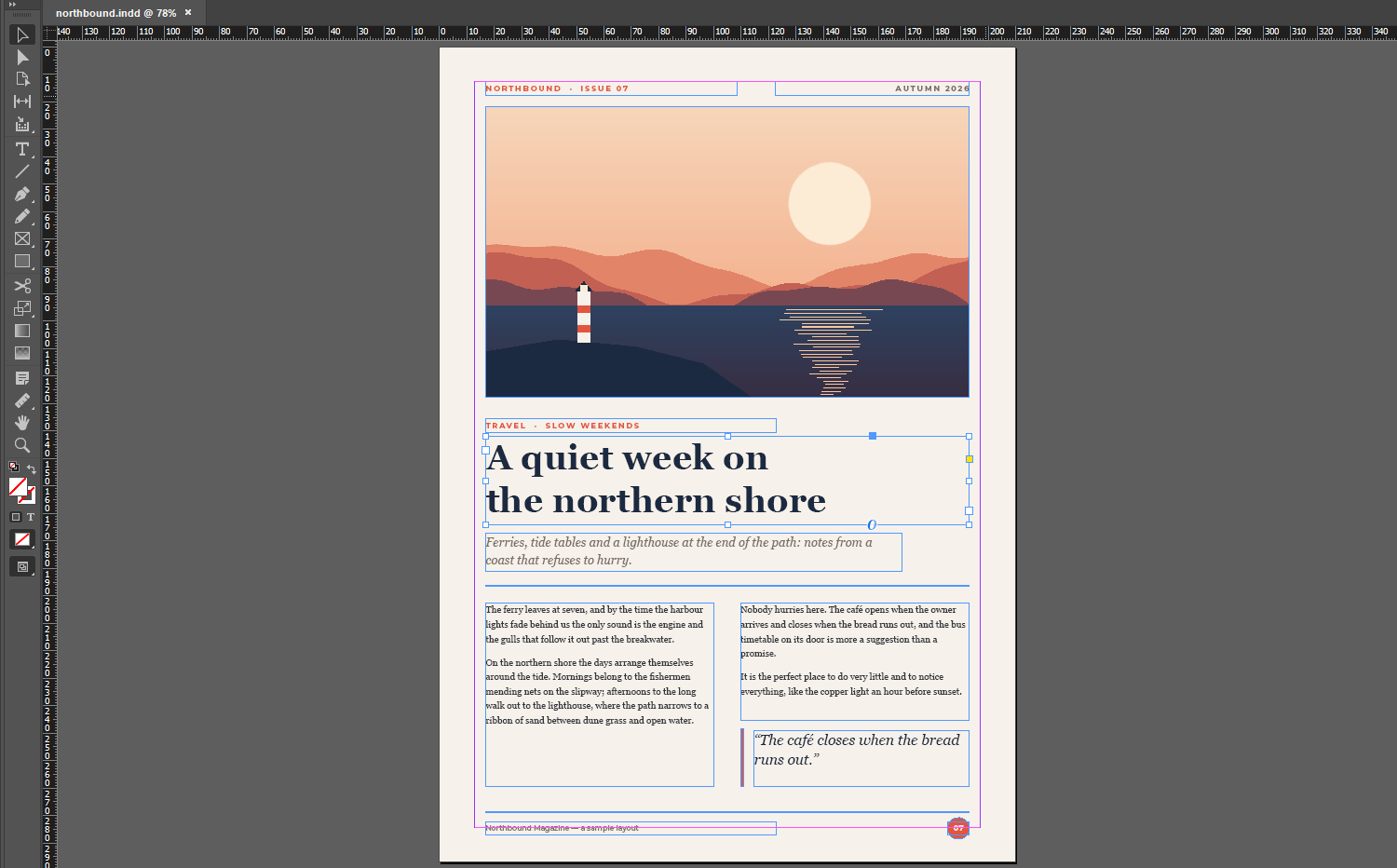
Every element of the page came through as a native InDesign object: 10 text frames, the image, the rules, the coloured quote bar and the round page badge. Nothing was dropped. The text is live, so you can click into it with the Type tool and rewrite it. The fonts carry over too: the headline is still Georgia Bold at 36 pt with 44 pt leading.
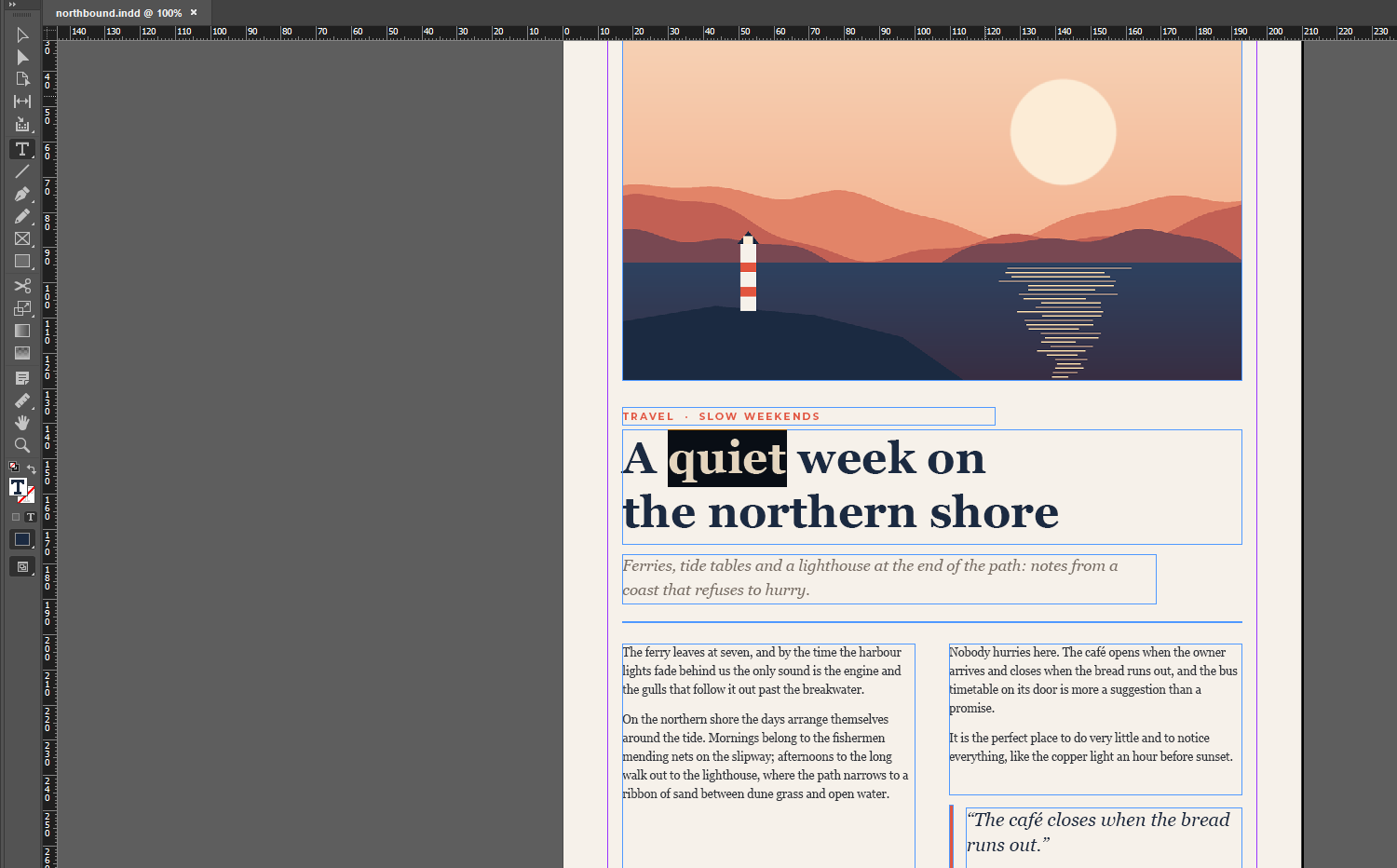
This is the main difference from exporting a PDF and placing it in InDesign. A placed PDF is a single graphic. An IDML file is a full InDesign document, with editable text, shapes and images on the page.
How to convert Sketch to InDesign
- Open the Sketch to InDesign converter.
- Drag your
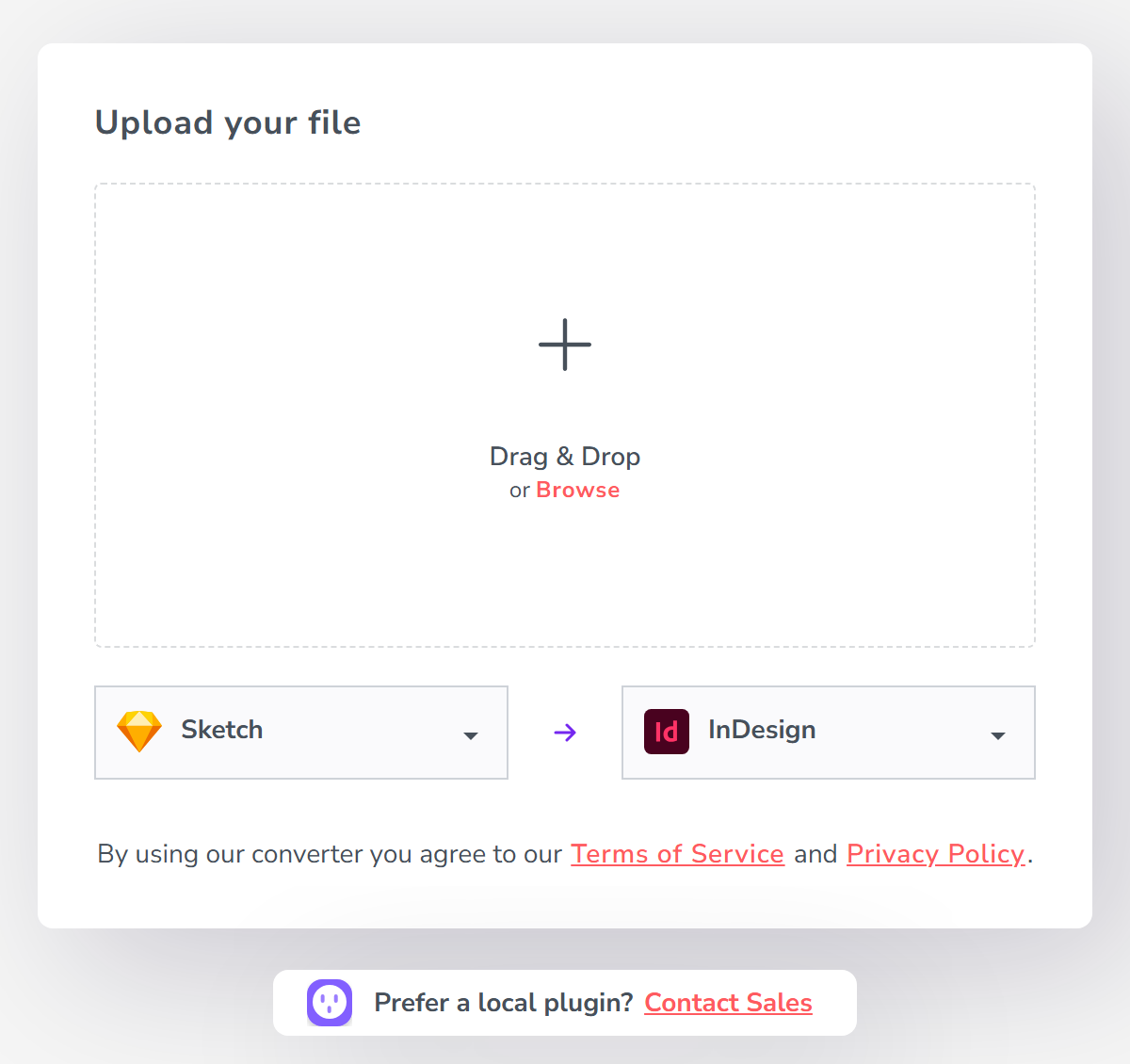
.sketchfile onto the upload box, or click Browse. Check that the formats read Sketch → InDesign. - Sign in to your Magicul account and complete the conversion checkout.
- When the job is done, download the
.idmlfile. You can also find it later under My Files.
How to convert Figma to InDesign
With Figma you don’t need to export anything. Magicul reads the design directly from your Figma link.
- In Figma, copy the link to your design file.
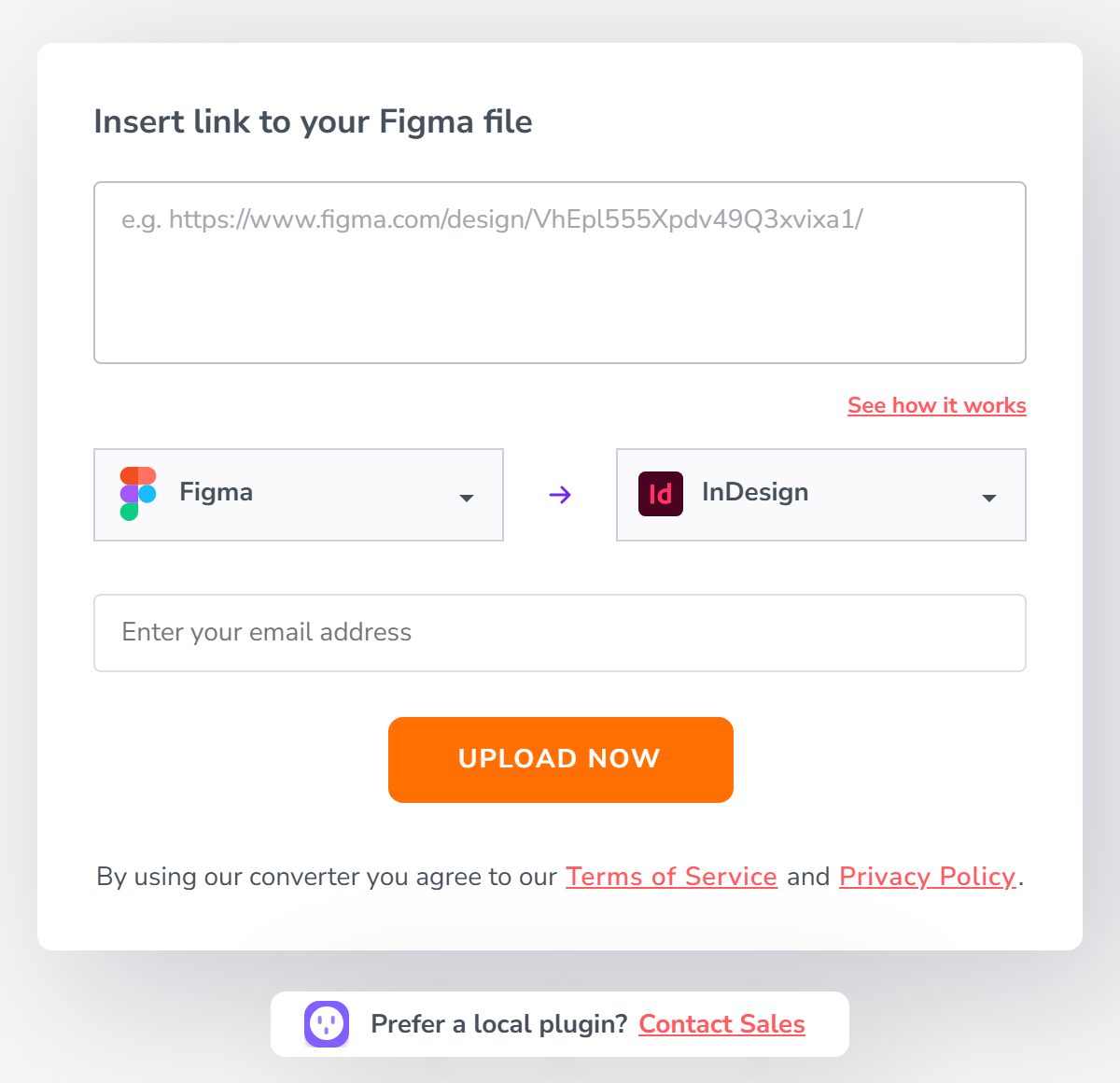
- Open the Figma to InDesign converter and paste the link. Check that the formats read Figma → InDesign, then click Upload Now.
- Sign in to Magicul. If the file is private, you will be asked to give Magicul access to it in Figma.
- Complete the conversion checkout, then download the
.idmlfile from the finished job or from My Files.
Magicul converts the latest version of your Figma file at the moment the job starts. If you are still making changes, finish them first, then start the conversion. Behind the scenes, Magicul first turns your Figma design into a temporary Sketch file and then runs the same Sketch to InDesign converter on it. That temporary file is deleted when the job finishes. You only ever deal with your Figma link and the IDML download.
Open the IDML file in Adobe InDesign
In InDesign, choose File > Open and select the .idml file you downloaded. InDesign opens it as a new, untitled document. To keep working in InDesign’s native format, choose File > Save As and save it as an .indd file. IDML is also the format InDesign uses to move documents between versions, which Adobe explains in its guide to opening files in earlier InDesign versions. Our test files opened in InDesign CC 2019, so an older release works too.
Before you send it to print
Magicul keeps your artwork editable wherever it can, but no two design tools work exactly alike. A quick review in InDesign is always worth it, especially before a file goes to a printer or to another team. Three things to keep in mind:
- Install your fonts. Text keeps its font names, but InDesign can only display fonts that are installed on your computer. If a font is missing, InDesign will highlight it so you can install it or pick a replacement.
- Check the details. How an element looks and how editable it is can vary with the element and the document. Compare the converted pages with your original before you sign them off.
- Unsupported elements are skipped, not fatal. If your design contains something the converter can’t reproduce, Magicul leaves that piece out and still delivers the rest of the document as a usable IDML file. If something looks missing in your file, reach out to our support team via the chat on magicul.io and we will look into your job.
Try it with your own layout
Have a brochure, flyer or editorial page that needs to move into InDesign? Start with the Sketch to InDesign converter or the Figma to InDesign converter. Working the other way around? You can also convert InDesign to Figma.