How to temporarily make a Canva design public

To use our service to convert Canva designs, your file must be set to public visibility so that we can access the data from Canva’s servers.
We typically advise that you make the file public only while the conversion is taking place to prevent any unauthorized third-party access. There is no risk involved in temporarily making a file public since the link remains private.
Here’s how to make a file public:
Step 1: Open the Canva file you wish to convert either in your web browser or through the Canva app.
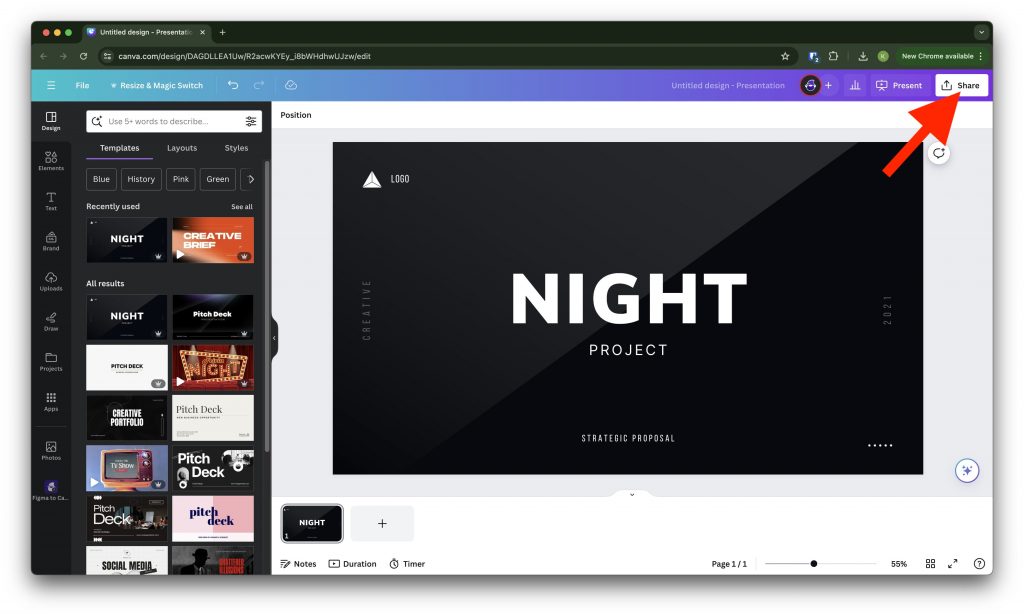
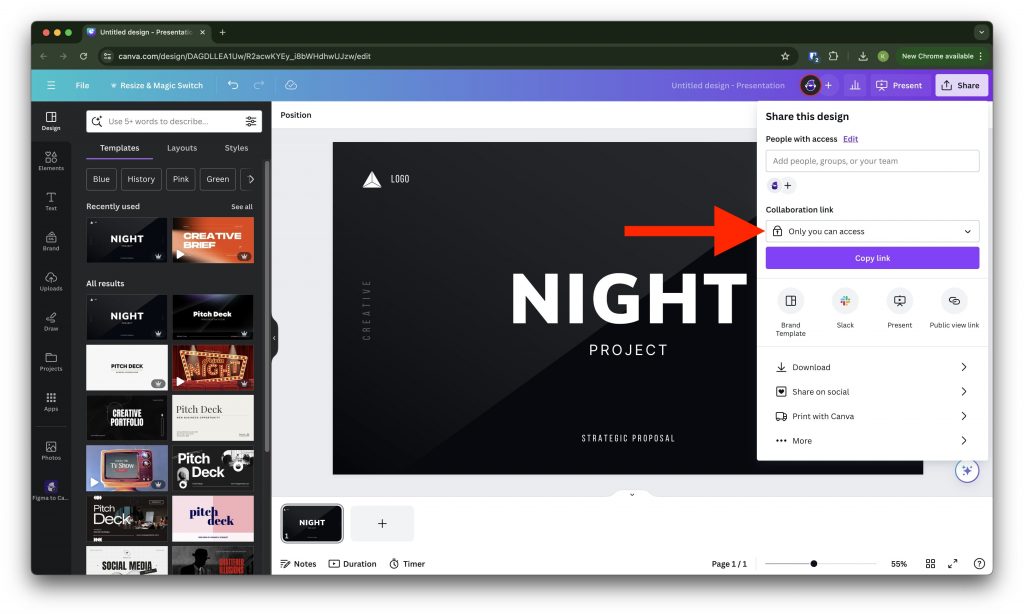
Step 2: Simply click on the “Share” button in the top right corner. Afterwards click on “Only you can access” in the “Collaboration Link” section.
Step 3: Change the share settings to “Anyone with the link”. You will find this in the “Collaboration Link” section.
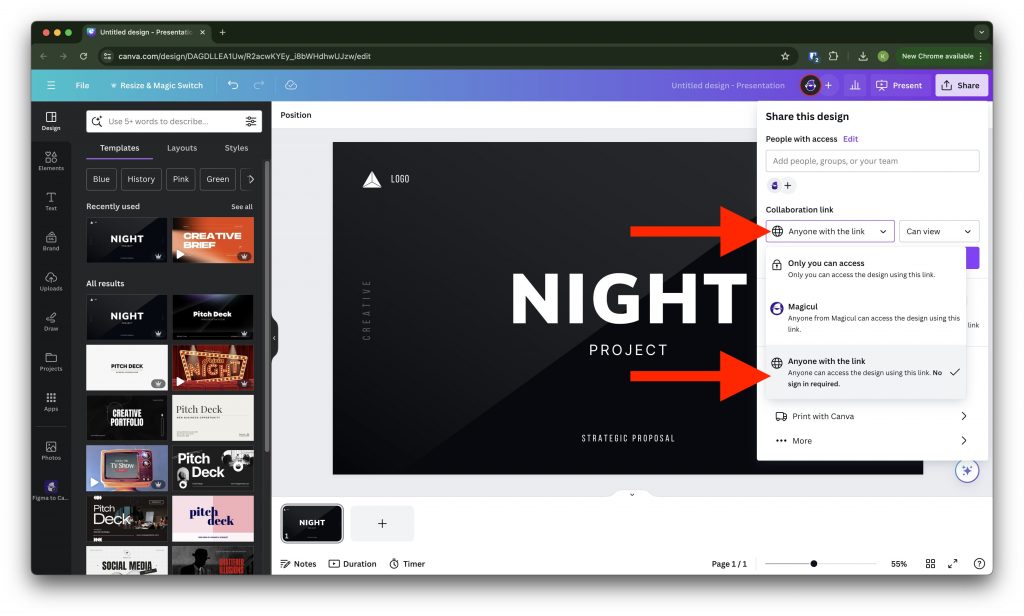
Step 4: Make sure to change the permissions to “Can View” so that the link is only shared with viewing permissions.
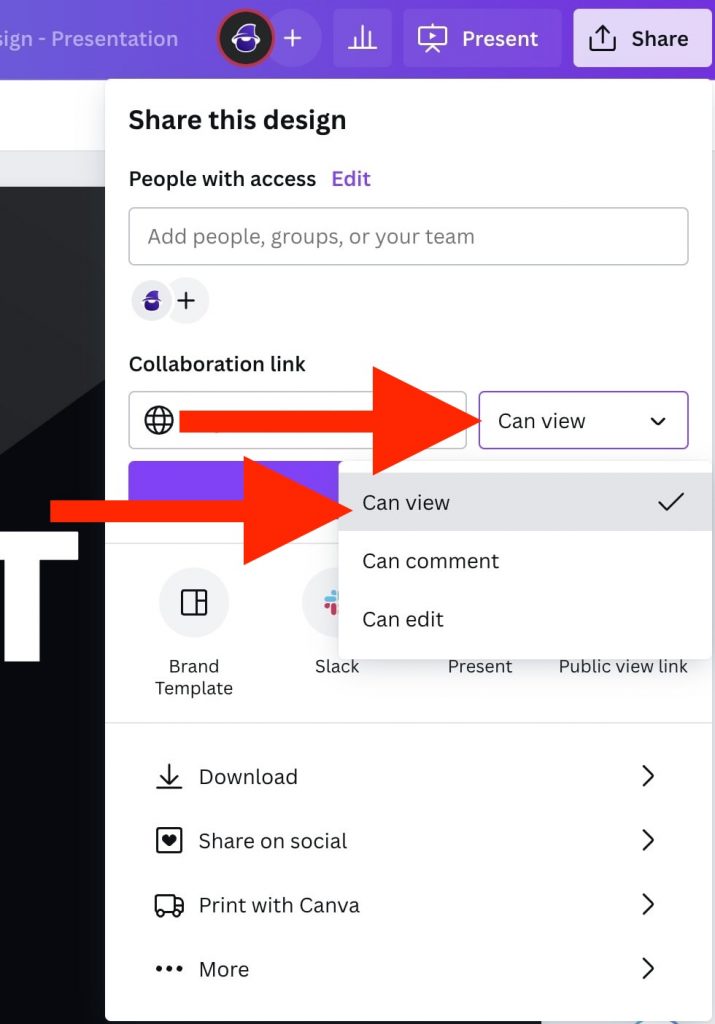
Step 5: Afterwards you should be able to flawlessly convert your Canva design. Once the conversion process is done, you can set your file back to private.
Your link will look similar to this:
https://www.canva.com/design/DAGDXLEA2Uw/R2axwKYEa_i8bWHdhwUJzw/edit
Happy converting!