How to convert Canva designs to Photoshop

Canva isn’t a replacement for professional design software such as Adobe Photoshop, but it is a fantastic tool for crafting social media posts, presentations, posters and really any kind of lightweight design. It has gained tremendous traction over the last couple of months. More and more people appreciate how quickly you can come up with social media banners and other designs thanks to the huge amount of templates they have available. Even Adobe itself noticed that Canva is gaining more and more market share and has launched its own competitor called Adobe Express in December 2021.
Even though Canva is becoming more popular day by day, a lot of designers still prefer working in the tools they’re used to, like Adobe Photoshop. Exactly that brings us to the question:
Is it possible to import Canva designs in Photoshop (PSD)?
Thanks to various tools there are actually ways to convert Canva designs to PSD (Photoshop) and we will be looking into that today.
Bottom line there’s two options to import your Canva design in Photoshop:
- A direct converter: Magicul.io
Most people think there is no direct converter for Canva to Adobe Photoshop, but there is one and we will explore it later in this article. - Go through PhotoPea:
The other common approach is a workaround that involves importing your file into an external application
We will be looking at both approaches and then compare how good the results are. So let’s get started, let’s move some designs from Canva to Photoshop 🚀
A direct design converter: Magicul.io
The Magicul design file converter allows you to directly convert and import Canva designs to Photoshop with only a few clicks.
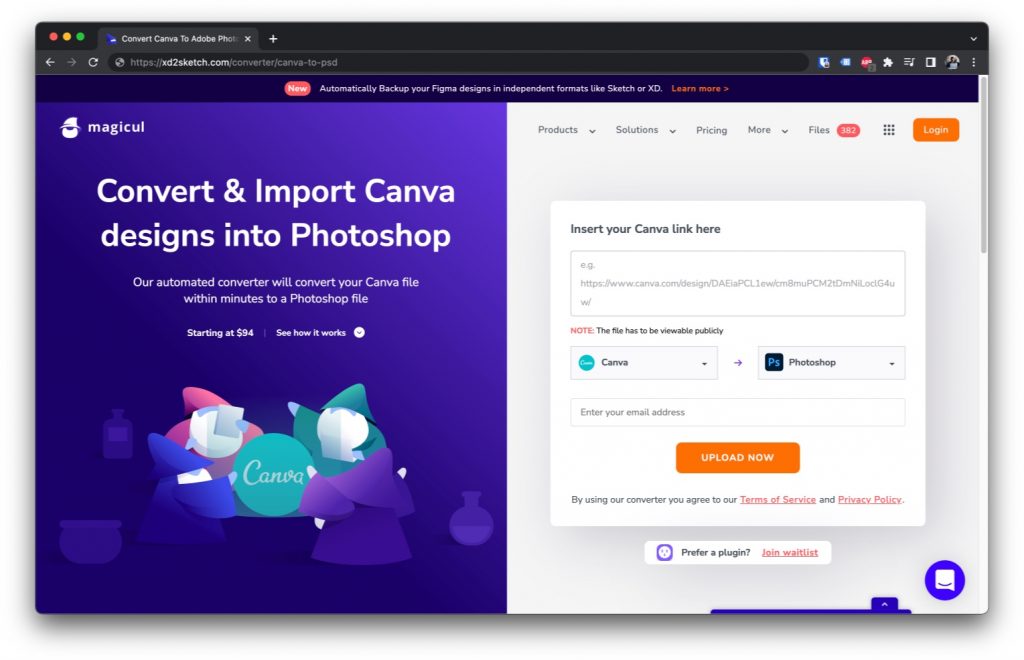
Simply head over to: https://magicul.io/converter/canva-to-psd and insert your Canva link:
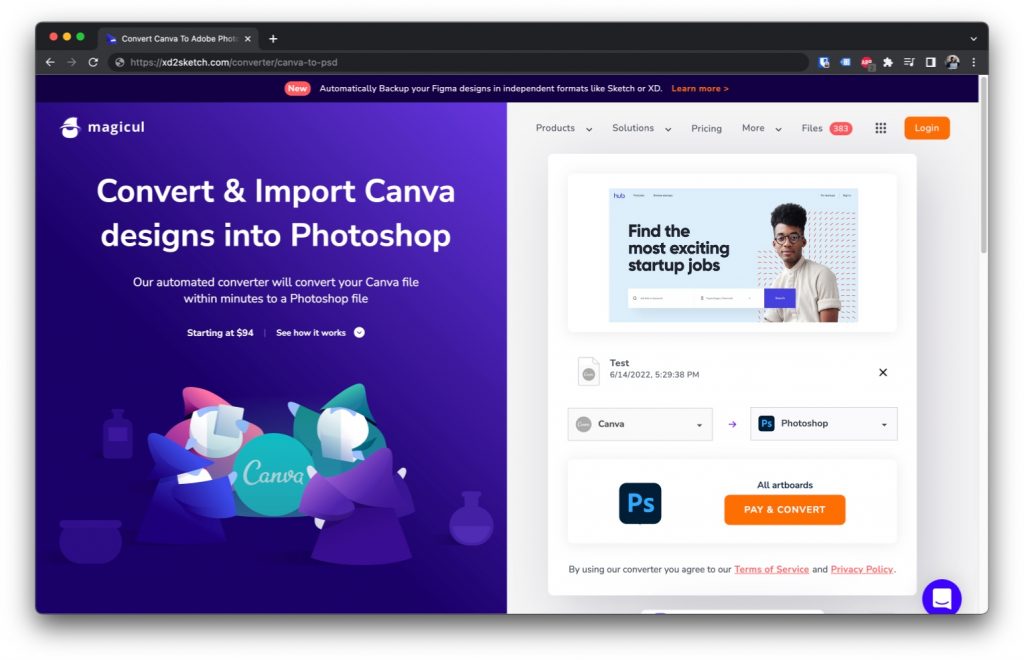
Once the upload is done, you’ll see a quick preview of your design. Simply hit “Pay & Convert” to start the conversion.
One thing to note: Magicul is a premium design file converter, which means that converting files isn’t free. This might sound like a disadvantage over other solutions, but the conversion results are highly accurate and save you a lot of time. The technology behind Magicul is very advanced and currently produces the best results in the market when converting any design files.
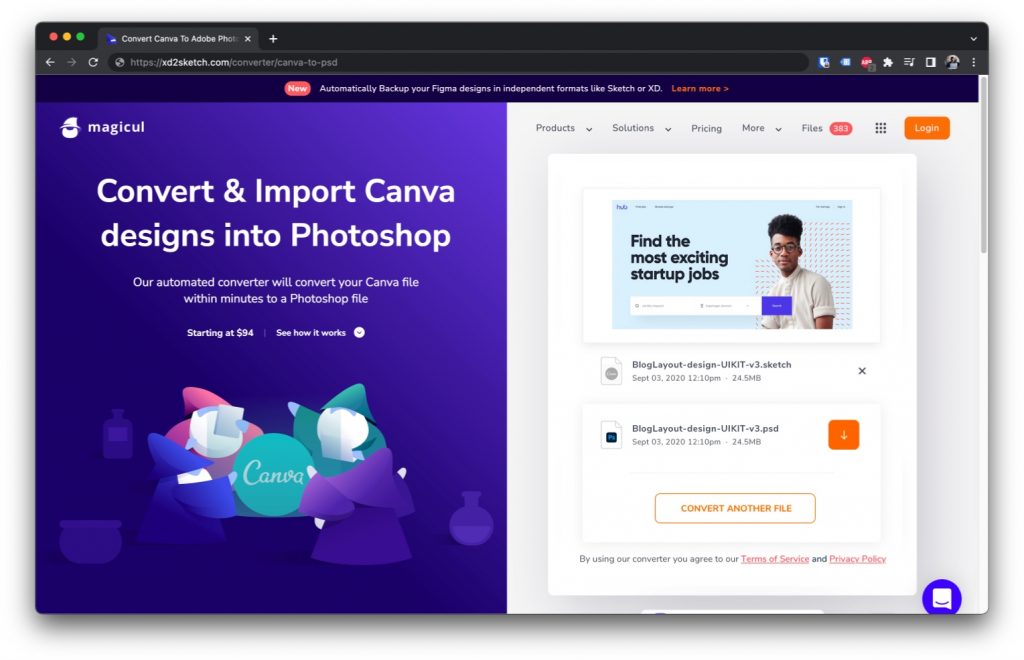
Once you’ve convert the file to PSD you can directly download it:
The results
Here is the Canva design opened in Adobe Photoshop.
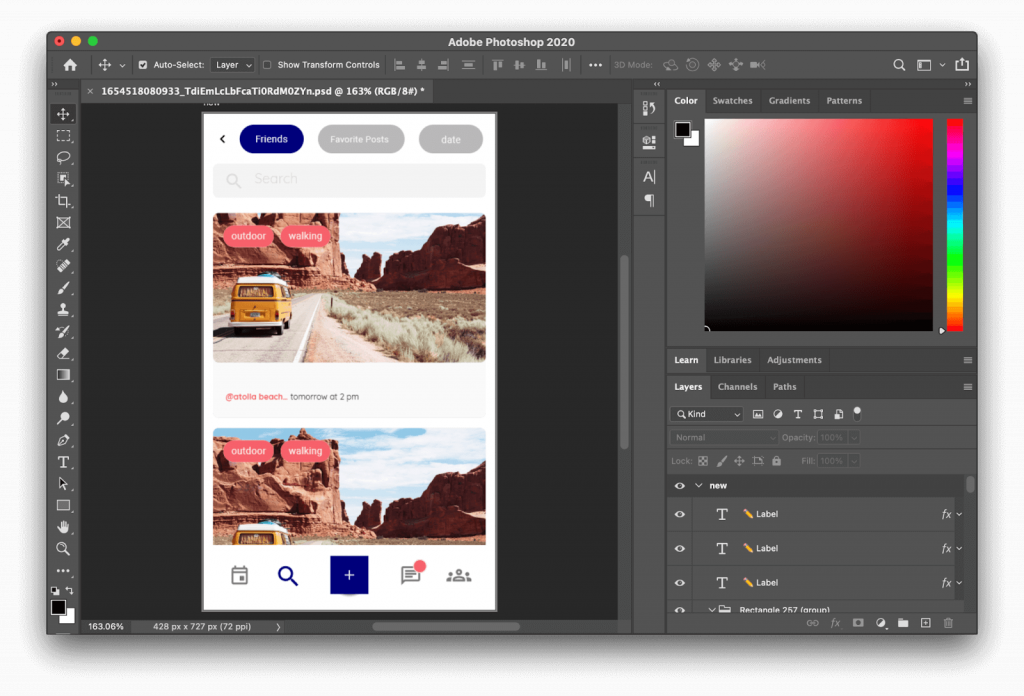
As you can see all text elements are properly positioned and editable and even the layers seem well organized.
Styles and shapes have been converted flawlessly and it’s possible to start working with the PSD file straight away.
How to use the workaround with PhotoPea
PhotoPea is a tool similar to Adobe Photoshop. The only difference is that it runs fully in the browser. Its main use-case is to edit photos directly in the browser without having to install any kind of software on your computer locally. Since PhotoPea is a raster based software just like Photoshop it allows you to export directly to PSD.
Here are the steps to get your Canva designs into PhotoPea:
1. Download your Canva design as PDF
You can use this video guide from Canva to: https://www.canva.com/designschool/tutorials/designing/save-design-pdf/
Otherwise simply click on the “Share” button in the top right corner.
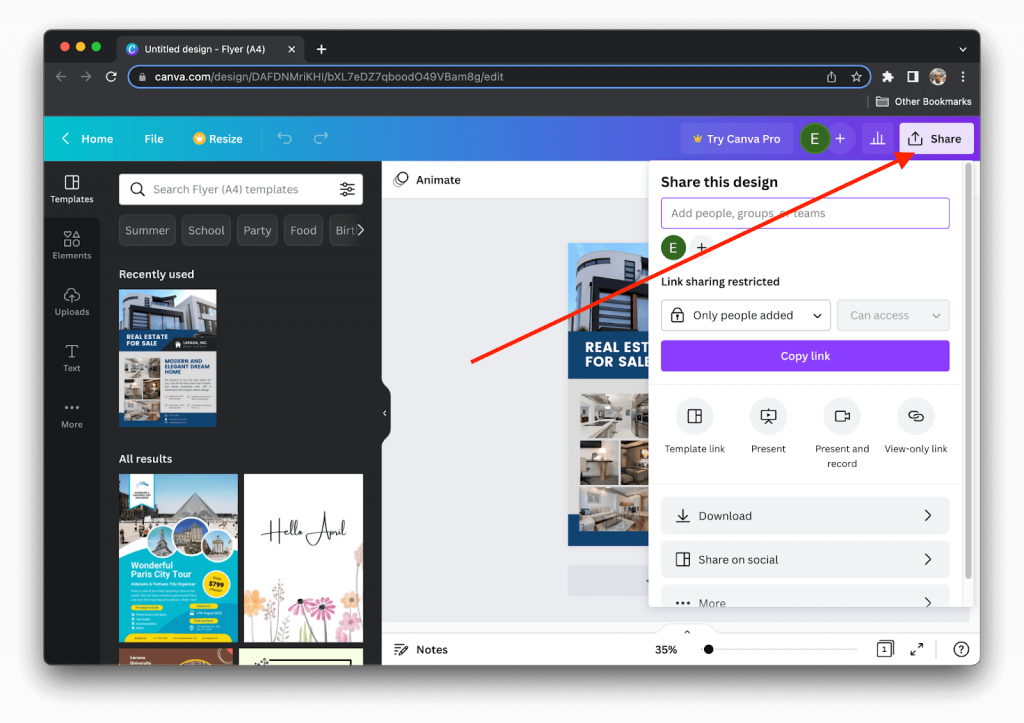
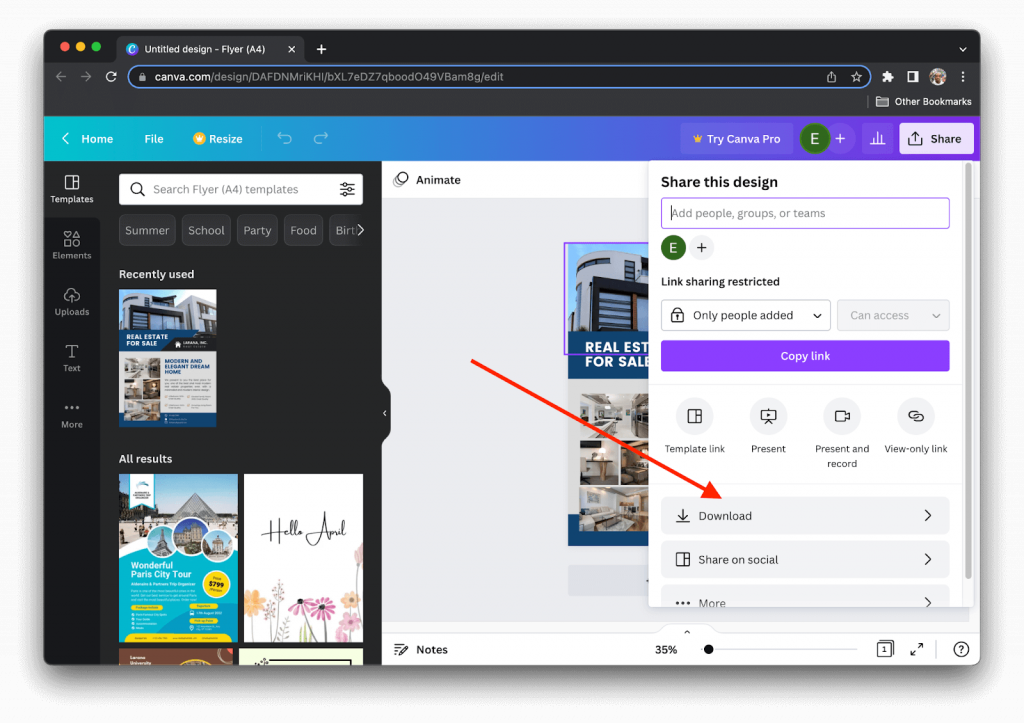
Afterwards click on “Download”.
As file type select “PDF Standard” and then confirm the download by simply clicking “Download”.
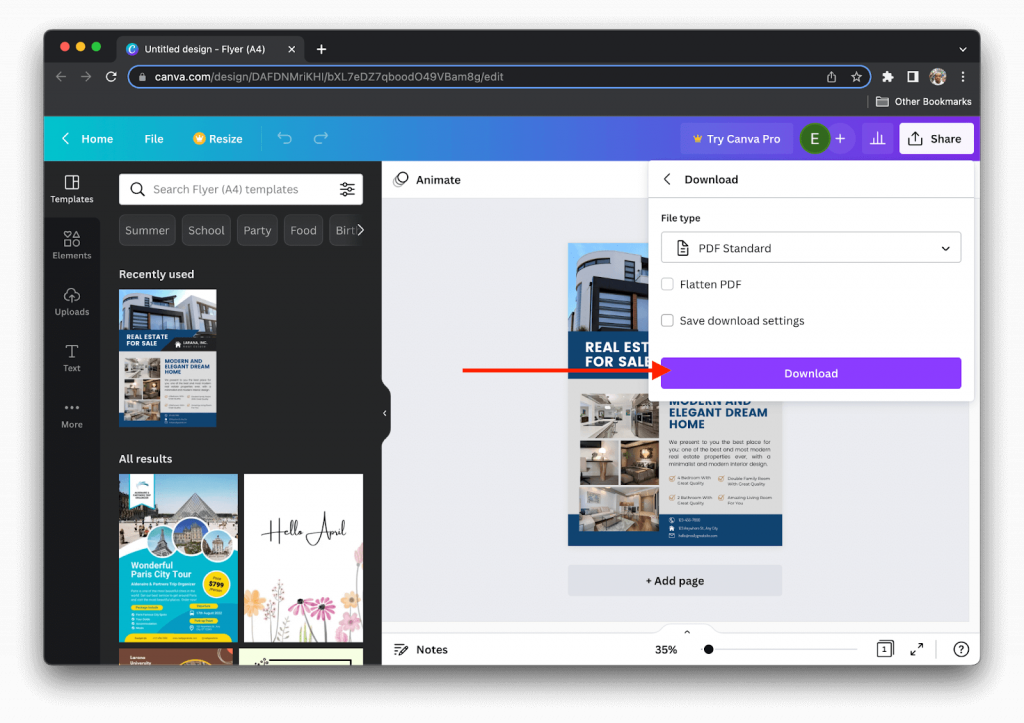
2. Import your PDF file in PhotoPea:
Here’s a quick video of how you can upload your PDF file to PhotoPea: https://www.loom.com/share/2538e33e7cf14a74a88c520d378c729a
3. Download PSD file from PhotoPea:
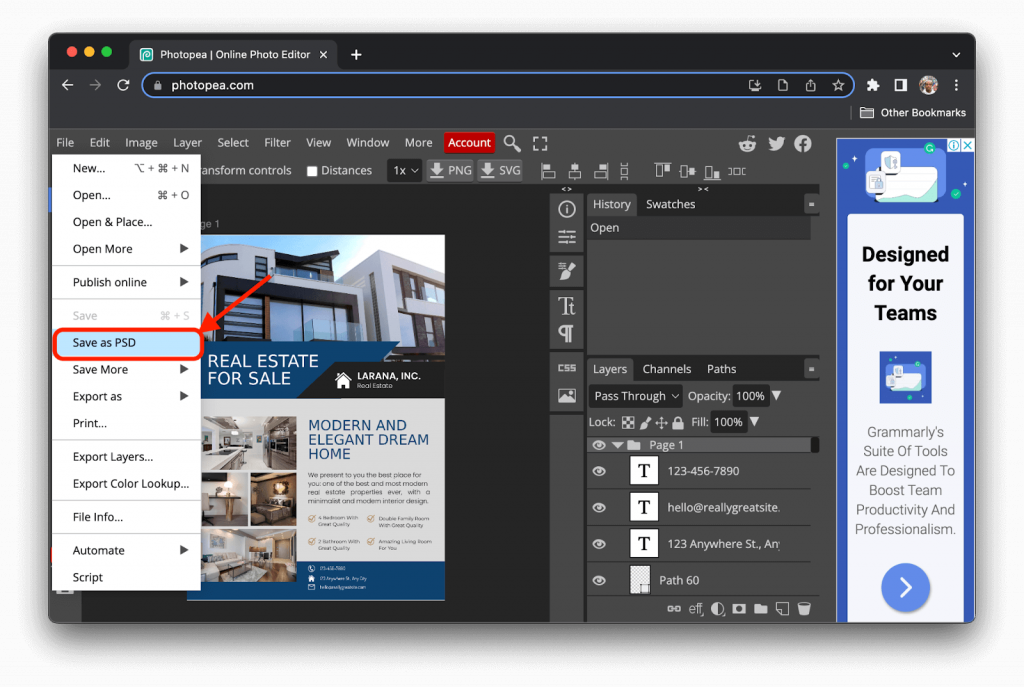
To download the PSD file from PhotoPea, simply click on “File” -> “Save as PSD”.
4. Open your PSD file in Photoshop
Voila, that wasn’t that difficult. You can now open your PSD file in Photoshop.
The results
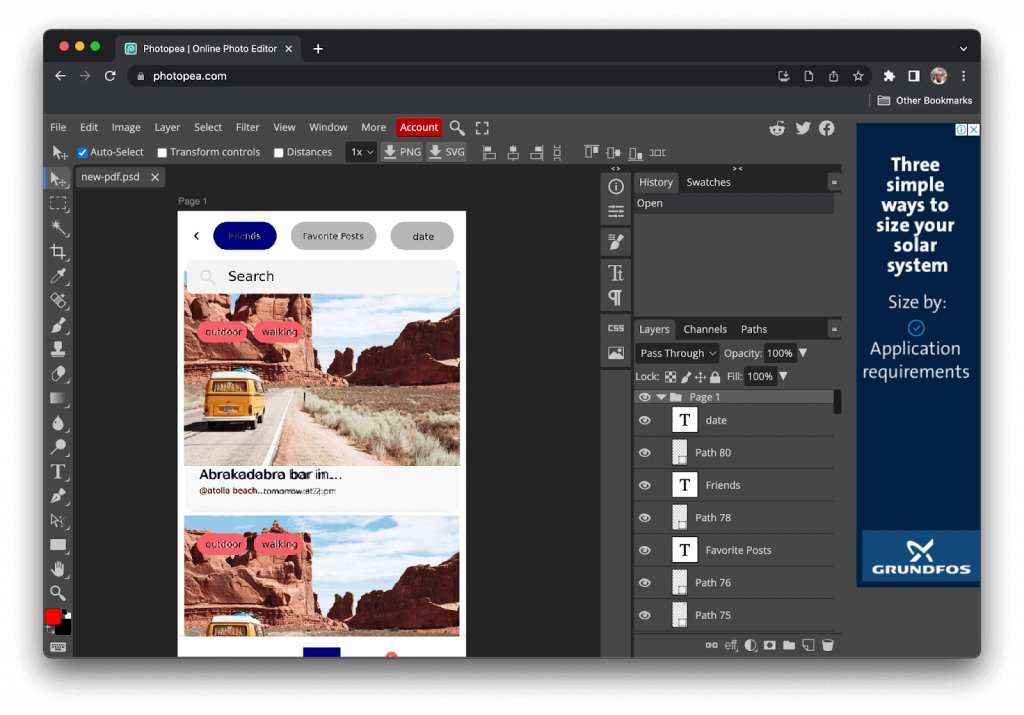
After importing a few PDF files on PhotoPea, we noticed that there’s a lot of cleanup work to do. The resulting PSD file has cut off and mispositioned text elements, unnecessary layers and missing styles.
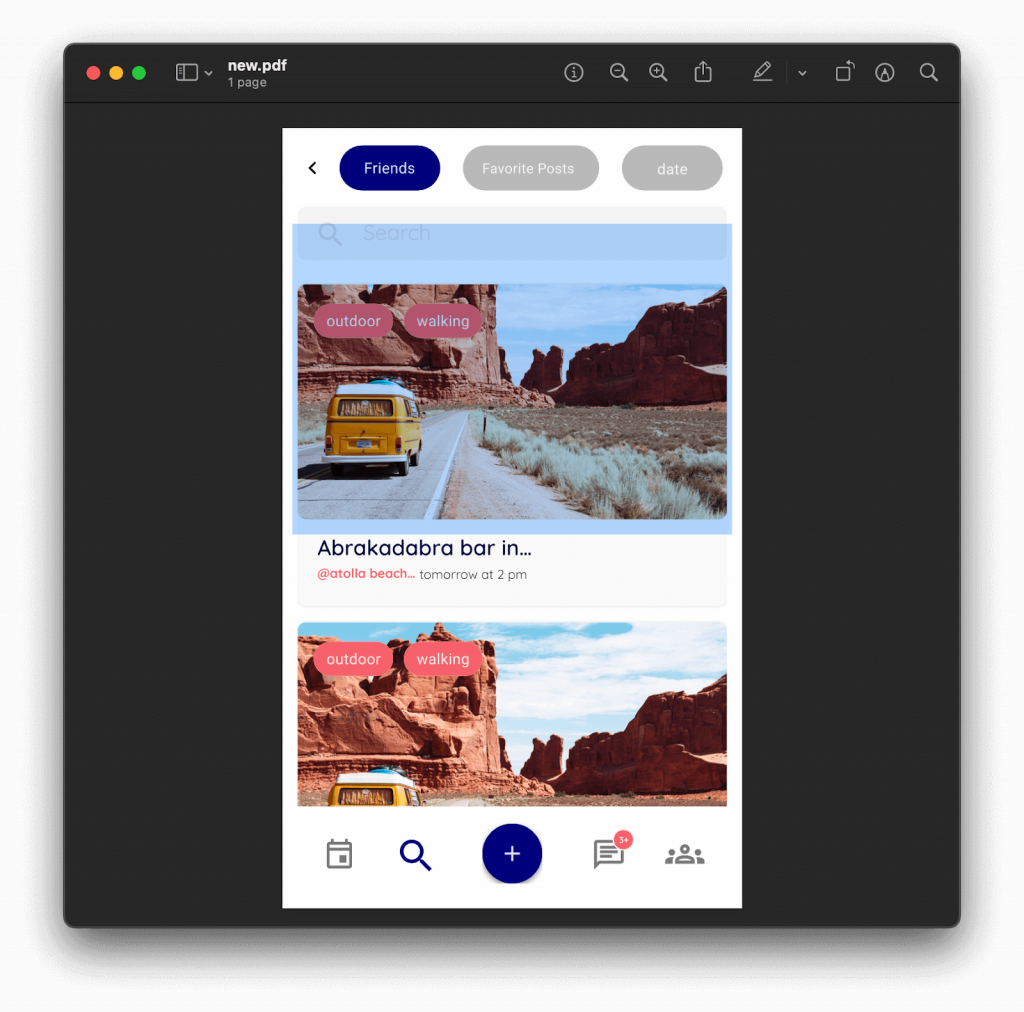
Here’s an example PDF file I tried:
The file imported in PhotoPea:
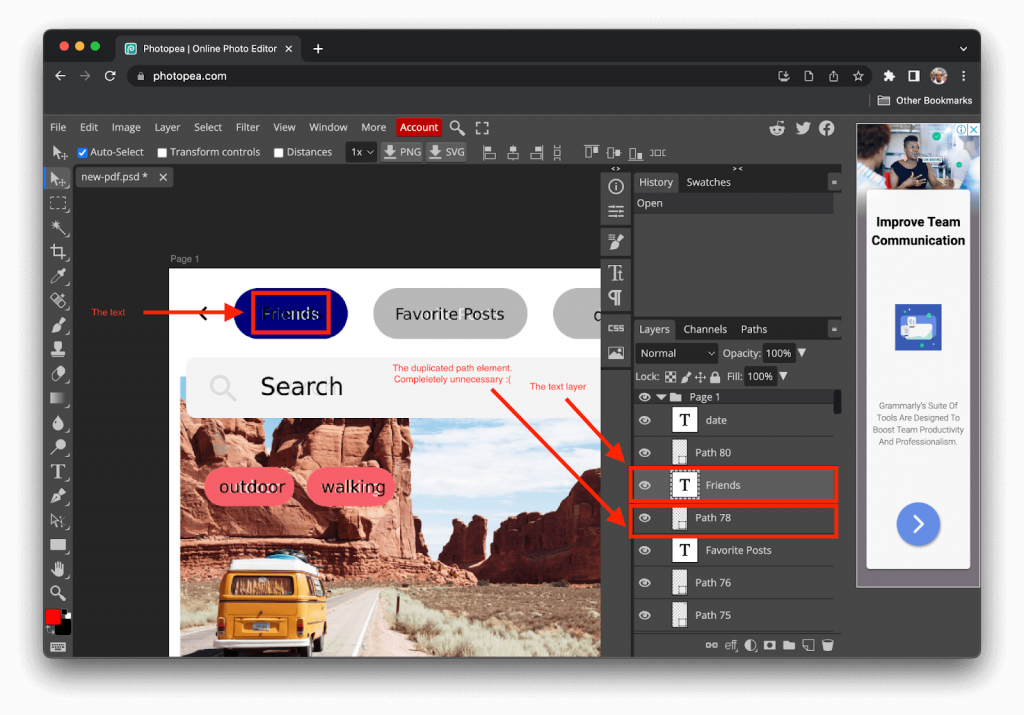
All the text has been duplicated as a path element for some reason. We needed to manually fix this by removing all the unnecessary path elements that were added. For a large file, this will be a repetitive and boring task that will cost a lot of time.
Conclusion
The Magicul design file converter is specifically tailored towards converting designs from Canva to PSD / Photoshop. You can expect your results to be more accurate than with any other workaround solution.
For smaller files it might be ok to go through an intermediate tool, but we highly advise you to checkout the Magicul design file converter especially for bigger projects and designs that you want to bring over to Photoshop from Canva.