How to Convert Canva to Google Slides (3 Easy Ways)


Need to convert Canva to Google Slides? You have three solid options: export your design as a PowerPoint file and import it, send it to Google Drive straight from Canva, or use an automated converter that keeps every element editable. In this guide we walk through all three methods with screenshots, and explain when each one is the right choice.
Method 1: Convert Canva to Google Slides via PPTX export
Canva can export any presentation as a Microsoft PowerPoint file, and Google Slides opens PowerPoint files natively. Consequently, this is the fastest built-in route.
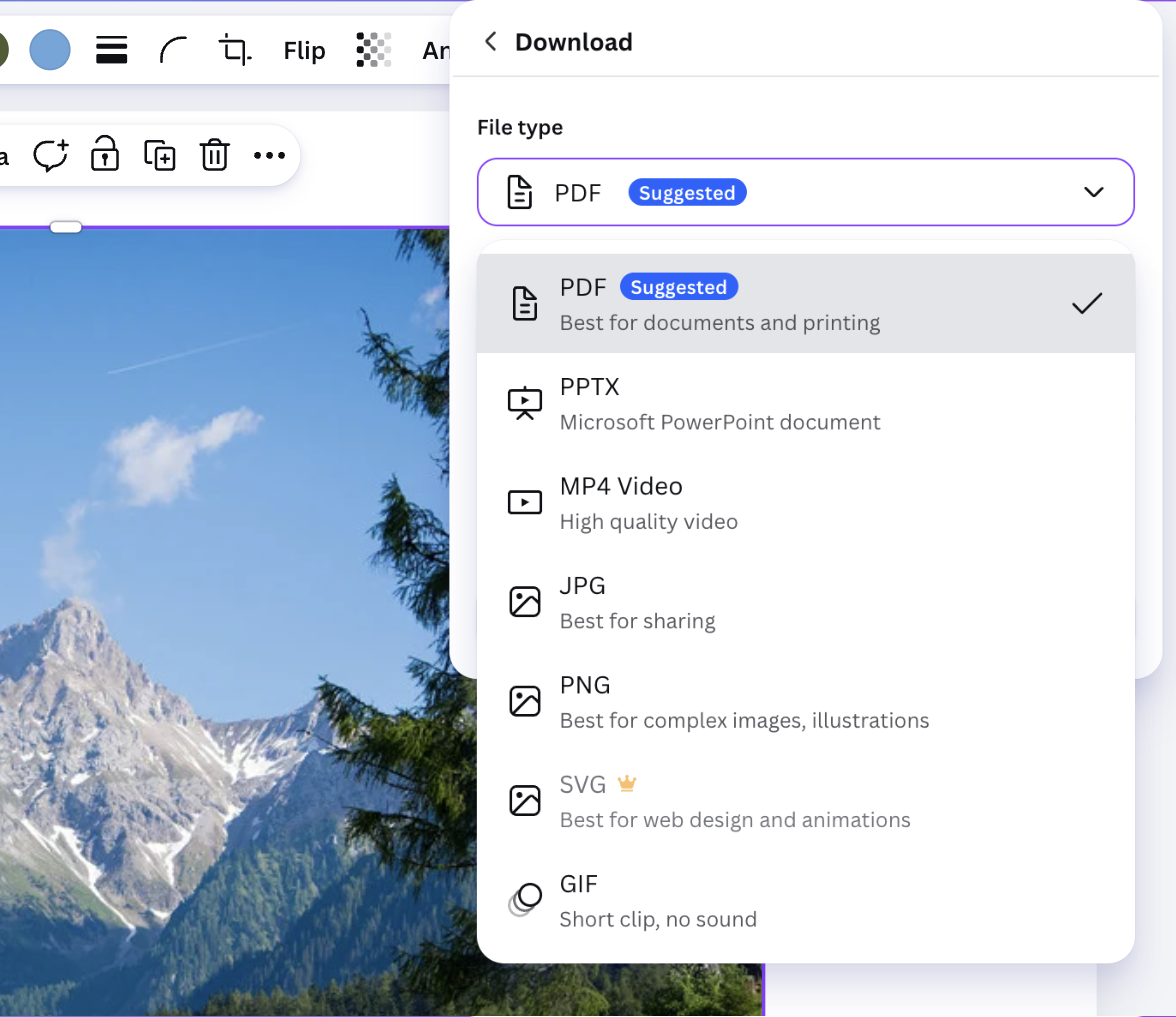
Step 1: Download your design as PPTX
Open your design in Canva and click Share in the top-right corner, then choose Download. In the file type dropdown, select PPTX (Microsoft PowerPoint document) and click Download.
Step 2: Import the file into Google Slides
Go to slides.google.com, open a blank presentation, and choose File → Import slides. Upload the PPTX you just downloaded, select the slides you want, and confirm. Alternatively, upload the PPTX to Google Drive and double-click it: Google opens PowerPoint files directly, as described in Google’s documentation on working with Office files.
One caveat: fonts and effects that only exist in Canva get substituted during the export. Therefore, expect to nudge a few text boxes afterwards if your design uses decorative fonts.
Method 2: Send the design from Canva to Google Drive
Canva can also push your design to Google Drive without a manual download. Click Share, then choose Google Drive from the options row. Pick the PPTX format and a Drive folder, and Canva uploads the file for you. Afterwards, open it from Drive with Google Slides.
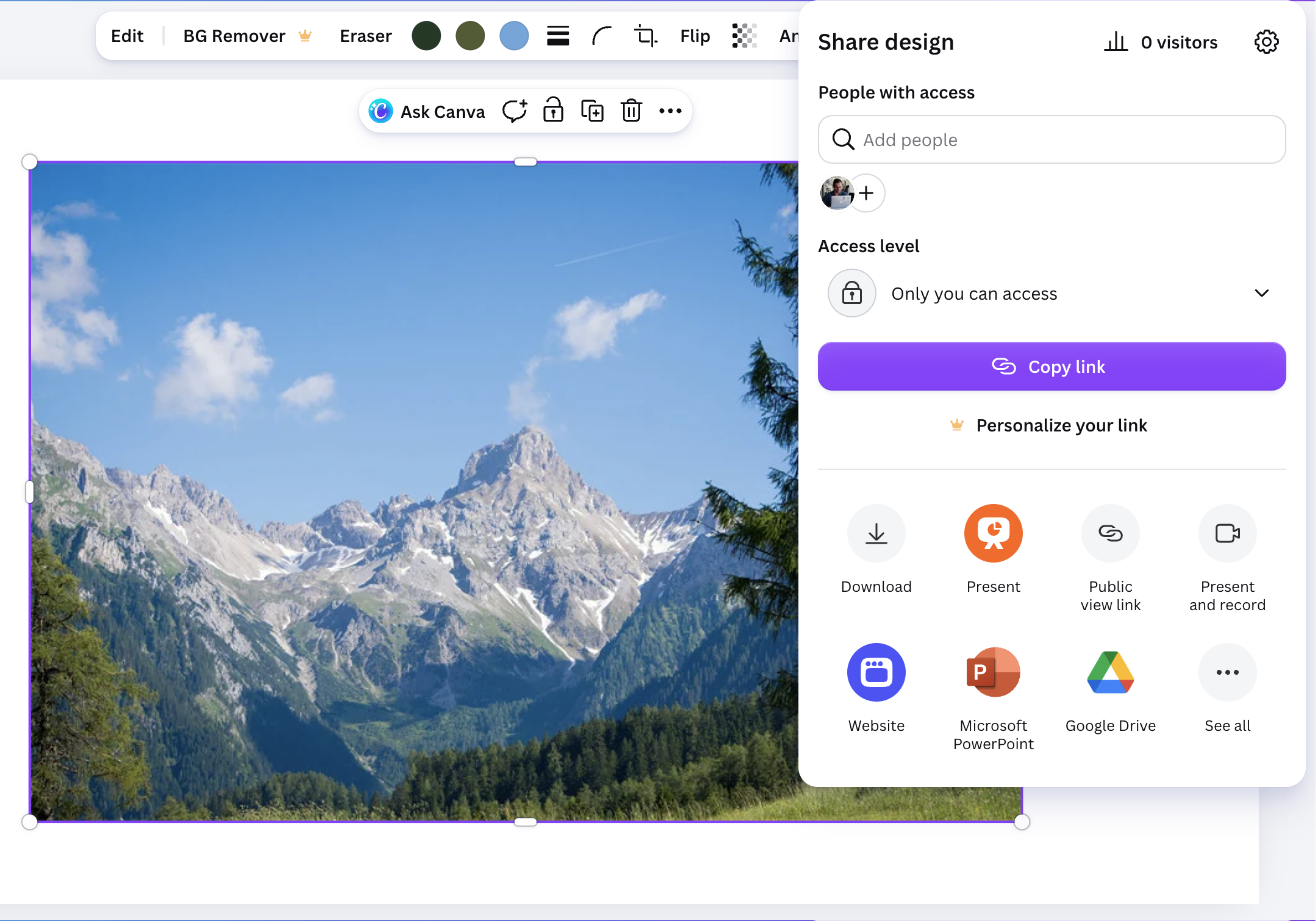
This method suits teams that keep all decks in a shared Drive. However, it has the same font-substitution limits as Method 1, because it uses the same PPTX export under the hood.
Method 3: Use an automated Canva to Google Slides converter
If the built-in export mangles your layout, or you need to convert many designs, our Canva to Google Slides converter does the heavy lifting. Paste the public link to your Canva design, and the converter rebuilds it as a Google Slides file with text, images, and positioning preserved. In addition, it handles designs you cannot open in Canva yourself, for example a deck a client shared with view-only access.
To make your design link public, follow our short guide on making a Canva design public.
Which method should you pick?
- One deck with standard fonts: Method 1. It’s free and takes two minutes.
- Team working out of Google Drive: Method 2 saves the manual upload.
- Complex layouts, decorative fonts, or bulk conversions: Method 3 keeps the design intact.
What survives when you convert Canva to Google Slides?
Not every element makes the trip equally well. The table below shows what to expect from the built-in PPTX export (Methods 1 and 2) compared to the automated converter (Method 3).
| Element | PPTX export (Methods 1 & 2) | Automated converter (Method 3) |
|---|---|---|
| Text boxes | Editable, but text can reflow | Editable, position preserved |
| Standard fonts | Carry over | Carry over |
| Canva-only fonts | Substituted or flattened into images | Swapped for a close match, text stays editable |
| Images and backgrounds | Carry over | Carry over |
| Shapes and icons | Mostly editable, some flatten | Converted as editable elements |
| Animations | Lost | Lost, re-apply in Google Slides |
| Audio and video | Not included | Not included |
| Hyperlinks | Preserved | Preserved |
In short, static content converts reliably in every path. The differences show up in typography and layout fidelity, which is exactly where the automated converter earns its keep.
Frequently asked questions
Can I convert Canva to Google Slides for free?
Yes. Methods 1 and 2 work on Canva’s free plan. Keep in mind that designs containing Pro stock elements export with watermarks unless you license them.
Will animations survive the conversion?
No. Canva animations do not translate to Google Slides transitions in any export path. You will need to re-apply transitions in Google Slides afterwards.
Can I go the other way, from Google Slides into Canva?
Yes. Canva imports PPTX files, so export your Google Slides deck as PowerPoint first. For a fully automated route, use our Google Slides to Canva converter.
How do I convert Canva to Google Slides without losing formatting?
Stick to fonts that exist on both platforms before you export. Fonts from the Google Fonts catalog are the safest choice, because Canva and Google Slides both support them. For decks that already use Canva-only fonts or layered effects, the automated converter preserves the layout far better than a plain PPTX export.
Can I import Canva slides into an existing Google Slides presentation?
Yes. Open the existing presentation and choose File → Import slides. Then upload the PPTX you exported from Canva and tick only the slides you need. Google Slides adds them after the current slide, and a checkbox lets you keep the original theme.
Does Canva have a direct export to Google Slides?
Not as a one-click button. The closest option is Share → Google Drive with PPTX as the format, which is Method 2 above. After that, Google Drive opens the file in Google Slides automatically.
Why does my Canva design look different in Google Slides?
Almost always because of fonts. When Google Slides cannot find the font a text box uses, it silently substitutes another one, which changes spacing and line breaks. Effects like shadows and curved text also get flattened. Re-select a standard font in Canva and export again, or convert the design with Method 3.
Working across even more tools? You may also like our guides on converting Canva to PowerPoint and importing Google Slides into Figma.