Importing Figma & Adobe XD in UXPin, BuilderX, and Origami


In this article, we are going to discuss how you can use UXPin, BuilderX or Origami and import your existing designs from Adobe XD or Figma. We are going to take a deeper look at what’s currently possible, which drawbacks each solution has.
Introduction
It is becoming common practice to use multiple UI/UX tools on the same project as you get more involved with the process. Designers tend to use Sketch or XD to craft the UI, InVision or UXPin to prototype, and tools like Zeplin to hand off designs to developers.
Different tools in the market are filling in niches that some designers have been looking for. Popular use-cases are: design to code conversion or extensive prototyping functions. Each tool comes with its own set of import functionalities.
The tools that we are looking at today each have a special set of features. Let’s dive into it…
The Tools
You might be wondering why I chose UXPin, BuilderX and Origami. Well, they each have unique features that make them worth exploring.
BuilderX
Result converting XD to Sketch
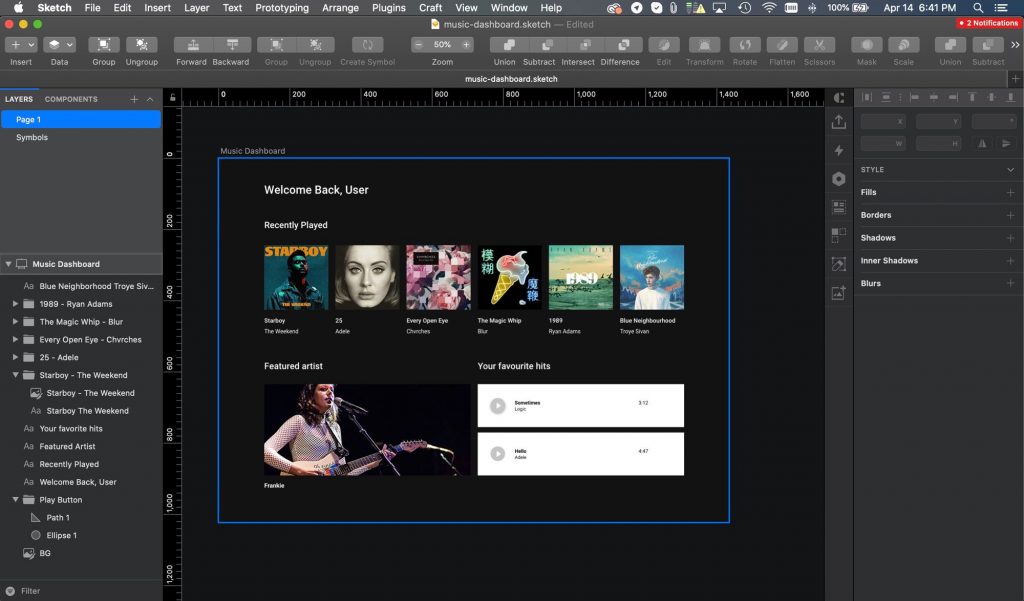
Magicul converts the file seamlessly including all text elements, images, and path elements, even Symbols. They were properly positioned and there was no additional work required to use the Sketch file.
The final step: Importing Sketch into UXPin, BuilderX, and Origami
After you get your Sketch file, all that’s left to do is to import it into UXPin, BuilderX, or Origami.
For UXPin and BuilderX, all you have to do is simply drag and drop your Sketch file or go through the menu. Just make sure that your projects are on artboards, otherwise, they will not get imported.
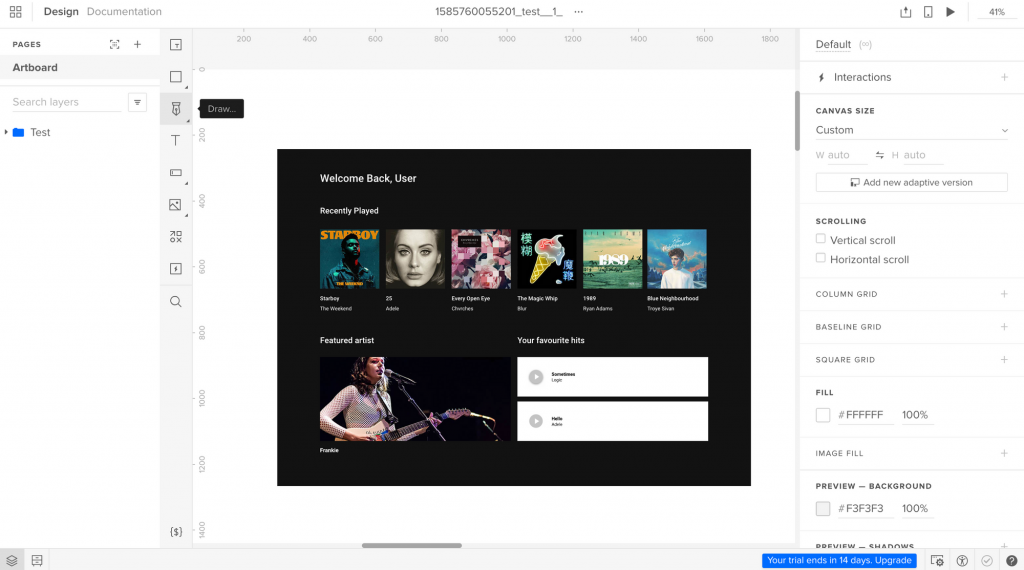
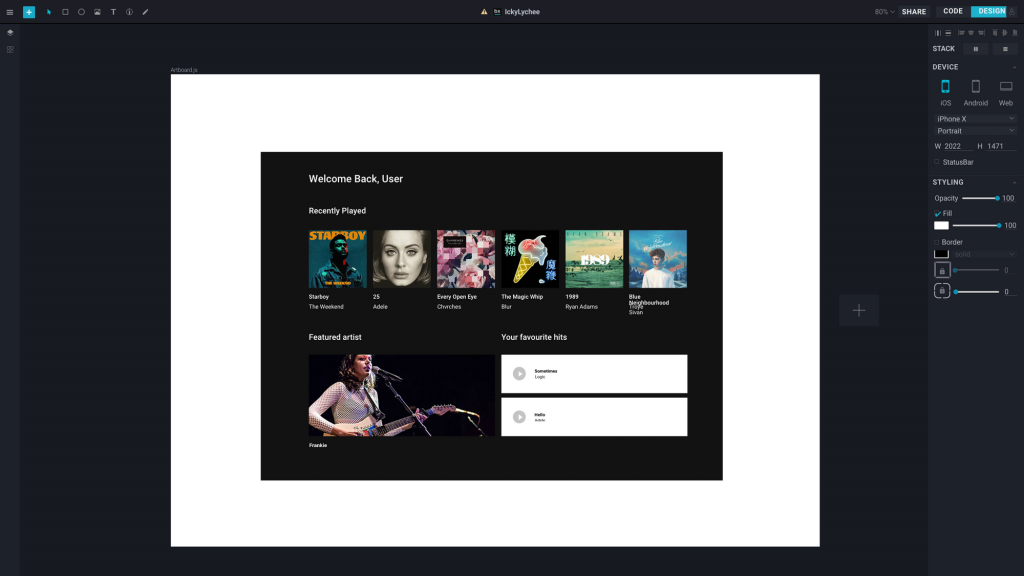
For Origami, it’s a little more complicated. Though it’s just a copy-paste from Sketch to Origami, if you plan on changing a component, you will have to copy-paste it individually, and not the whole artboard, as Origami transforms it into an image labelled ‘paste’.
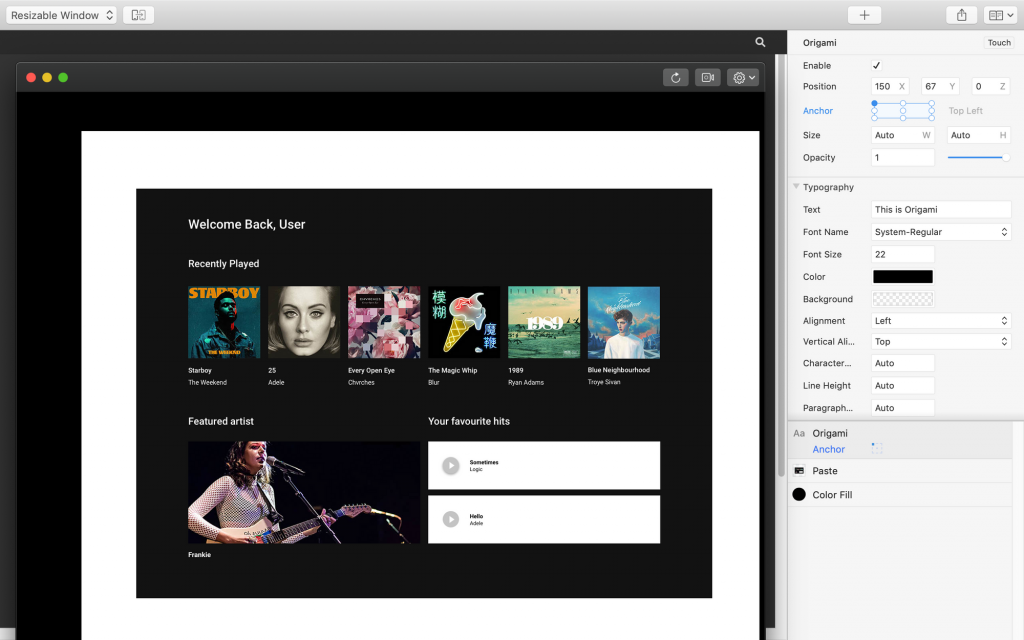
Now you can use UXPin, BuilderX or Origami with your existing XD or Figma files.
Happy designing and prototyping!